Tkinter widgets
last modified January 30, 2024
In this article we cover some basic Tkinter widgets. We work with the following
widgets: Checkbutton, Label,
Scale, and Listbox.
Widgets are basic building blocks of a GUI application. Over the years, several widgets became a standard in all toolkits on all OS platforms; for example a button, a check box or a scroll bar. Some of them might have different names. For instance, a check box is called a check button in Tkinter. Tkinter has a small set of widgets which cover basic programming needs. More specialized widgets can be created as custom widgets.
Tkinter Checkbutton
Checkbutton is a widget that has two states: on and off.
The on state is visualized by a check mark. (Some themes may have different visuals.)
It is used to denote some boolean property.
The Checkbutton widget provides a check box with a text label.
#!/usr/bin/python


from tkinter import Tk, Frame, Checkbutton
from tkinter import BooleanVar, BOTH

class Example(Frame):

    def __init__(self):
        super().__init__()

        self.initUI()


    def initUI(self):

        self.master.title("Checkbutton")

        self.pack(fill=BOTH, expand=True)
        self.var = BooleanVar()

        cb = Checkbutton(self, text="Show title",
            variable=self.var, command=self.onClick)
        cb.select()
        cb.place(x=50, y=50)


    def onClick(self):

        if self.var.get() == True:
            self.master.title("Checkbutton")
        else:
            self.master.title("")


def main():

    root = Tk()
    root.geometry("250x150+300+300")
    app = Example()
    root.mainloop()


if __name__ == '__main__':
    main()
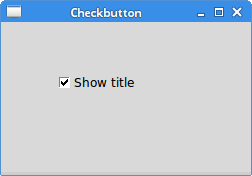
In our example, we place a check button on the window. The check button shows or hides the title of the window.
self.var = BooleanVar()
We create an BooleanVar object. It is a value holder for Boolean
values for widgets in Tkinter.
cb = Checkbutton(self, text="Show title",
    variable=self.var, command=self.onClick)
An instance of the Checkbutton is created. The value holder
is connected to the widget via the variable parameter. When
we click on the check button, the onClick() method is called.
This is done with the command parameter.
cb.select()
Initially, the title is shown in the titlebar. So at the start, we make it
checked with the select() method.
if self.var.get() == True:
    self.master.title("Checkbutton")
else:
    self.master.title("")
Inside the onClick() method, we display or hide the title based on
the value from the self.var variable.
Tkinter Label
The Label widget is used to display text or images.
No user interaction is available.
#!/usr/bin/python

from PIL import Image, ImageTk
from tkinter import Tk
from tkinter.ttk import Frame, Label
import sys

class Example(Frame):

    def __init__(self):
        super().__init__()

        self.loadImage()
        self.initUI()


    def loadImage(self):
        try:
            self.img = Image.open("tatras.jpg")

        except IOError:
            print("Unable to load image")
            sys.exit(1)


    def initUI(self):

        self.master.title("Label")

        tatras = ImageTk.PhotoImage(self.img)
        label = Label(self, image=tatras)

        # reference must be stored
        label.image = tatras

        label.pack()
        self.pack()


    def setGeometry(self):

        w, h = self.img.size
        self.master.geometry(("%dx%d+300+300") % (w, h))


def main():

    root = Tk()
    ex = Example()
    ex.setGeometry()
    root.mainloop()


if __name__ == '__main__':
    main()
Our example shows an image on the window.
from PIL import Image, ImageTk
By default, the Label widget can display only a limited
set of image types. To display a JPG image, we must use the PIL, Python
Imaging Library module.
self.img = Image.open("tatras.jpg")
We create an Image from the image file in the
current working directory.
tatras = ImageTk.PhotoImage(self.img)
We create a photo image from the image.
label = Label(self, image=tatras)
The photoimage is given to the image parameter of the
label widget.
label.image = tatras
In order not to be garbage collected, the image reference must be stored.
w, h = self.img.size
self.master.geometry(("%dx%d+300+300") % (w, h))
We make the size of the window to exactly fit the image size.
Tkinter Scale
Scale is a widget that lets the user graphically select
a value by sliding a knob within a bounded interval. Our example will
show a selected number in a label widget.
#!/usr/bin/python


from tkinter import Tk, BOTH, IntVar, LEFT
from tkinter.ttk import Frame, Label, Scale, Style

class Example(Frame):

    def __init__(self):
        super().__init__()

        self.initUI()


    def initUI(self):

        self.master.title("Scale")
        self.style = Style()
        self.style.theme_use("default")

        self.pack(fill=BOTH, expand=1)

        scale = Scale(self, from_=0, to=100,
            command=self.onScale)
        scale.pack(side=LEFT, padx=15)

        self.var = IntVar()
        self.label = Label(self, text=0, textvariable=self.var)
        self.label.pack(side=LEFT)


    def onScale(self, val):

        v = int(float(val))
        self.var.set(v)


def main():

    root = Tk()
    ex = Example()
    root.geometry("250x100+300+300")
    root.mainloop()


if __name__ == '__main__':
    main()
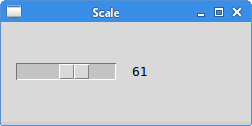
We have two widgets in the above script: a scale and a label. A value from the scale widget is shown in the label widget.
scale = Scale(self, from_=0, to=100,
    command=self.onScale)
A Scale widget is created. We provide the lower and upper
bounds. The from is a regular Python keyword that is why there is an
underscore after the first parameter. When we move the knob of the scale,
the onScale() method is called.
self.var = IntVar()
self.label = Label(self, text=0, textvariable=self.var)
An integer value holder and label widget are created. Value from the holder is shown in the label widget.
def onScale(self, val):

    v = int(float(val))
    self.var.set(v)
The onScale method receives a currently selected value from the
scale widget as a parameter. The value is first converted to a float
and then to integer. Finally, the value is set to the value holder of the
label widget.
Tkinter Listbox
Listbox is a widget that displays a list of objects. It allows the user
to select one or more items.
#!/usr/bin/python

from tkinter import Tk, BOTH, Listbox, StringVar, END
from tkinter.ttk import Frame, Label

class Example(Frame):

    def __init__(self):
        super().__init__()

        self.initUI()


    def initUI(self):

        self.master.title("Listbox")

        self.pack(fill=BOTH, expand=1)

        acts = ['Scarlett Johansson', 'Rachel Weiss',
            'Natalie Portman', 'Jessica Alba']

        lb = Listbox(self)

        for i in acts:
            lb.insert(END, i)

        lb.bind("<<ListboxSelect>>", self.onSelect)

        lb.pack(pady=15)

        self.var = StringVar()
        self.label = Label(self, text=0, textvariable=self.var)
        self.label.pack()


    def onSelect(self, val):

        sender = val.widget
        idx = sender.curselection()
        value = sender.get(idx)

        self.var.set(value)


def main():

    root = Tk()
    ex = Example()
    root.geometry("300x250+300+300")
    root.mainloop()


if __name__ == '__main__':
    main()
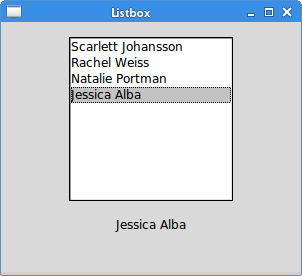
In our example, we show a list of actresses in the Listbox.
The currently selected actress is displayed in a label widget.
acts = ['Scarlett Johansson', 'Rachel Weiss',
    'Natalie Portman', 'Jessica Alba']
This is a list of actresses to be shown in the listbox.
lb = Listbox(self)
for i in acts:
    lb.insert(END, i)
We create an instance of the Listbox and insert all
the items from the above mentioned list.
lb.bind("<<ListboxSelect>>", self.onSelect)
When we select an item in the listbox, the <<ListboxSelect>>
event is generated. We bind the onSelect() method to this event.
self.var = StringVar()
self.label = Label(self, text=0, textvariable=self.var)
A label and its value holder is created. In this label we will display the currently selected item.
sender = val.widget
We get the sender of the event. It is our listbox widget.
idx = sender.curselection()
We find out the index of the selected item using the
curselection method.
value = sender.get(idx)
The actual value is retrieved with the get() method,
which takes the index of the item.
self.var.set(value)
Finally, the label is updated.
Source
In this article we have presented several Tkinter widgets.